
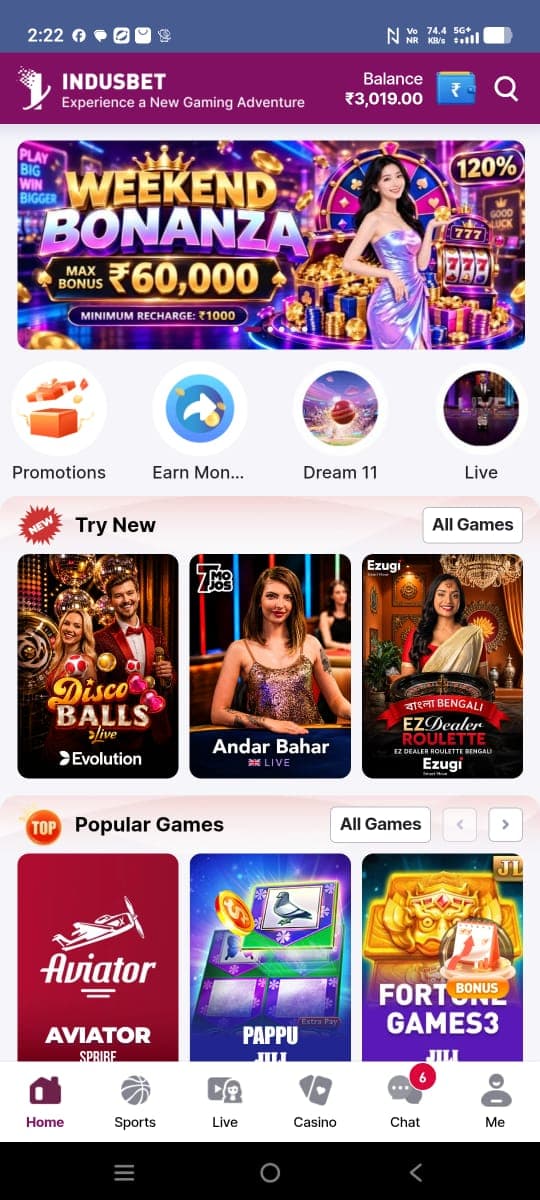
A factual guide to the home screen, bottom navigation, search, and category browsing shown in the captures. This article is based on the supplied screenshots and publicly available primary references where relevant. It is informational and does not endorse or recommend a service.
Start with the home feed
The supplied home screen combines a branded top bar, a large promotional banner, circular shortcuts, and multiple game sections. A user can scan the layout vertically, with game artwork acting as a visual index. The screen also shows a persistent bottom navigation strip. Because the capture may represent a particular moment, use it to understand layout rather than to decide which links or features are available today.
Read the top bar
In the capture, the header places a brand mark and a short tagline on the left. A balance label and icon appear toward the right alongside a search symbol. These are visible labels, not confirmation of a live balance or an active search feature. When assessing any account header, distinguish decorative or account-specific information from service terms. Avoid sharing personal account details in public screenshots.
Scan shortcuts and sections
Below the prominent banner sit circular shortcuts with captions such as promotions, a referral-like label, Dream 11, and Live. The exact caption may be clipped in the source image, a useful reminder that screenshots can omit detail. Lower on the screen, section headings divide game tiles into groups. Our gallery lets you zoom into the home captures, while the category index describes the visible groups.
Understand the bottom navigation
Several captures show the same bottom bar with Home, Sports, Live, Casino, Chat, and Me labels. The active item uses a stronger accent. This persistent navigation offers a recognizable route between major screens in the captured interface. The screenshot does not reveal every destination, interaction, or accessibility behavior. If labels or button states are unclear, consult the current app interface directly and be careful with links from unverified sources.
Use search and filters carefully
Some views show a search icon, category selectors, and sorting controls. These controls suggest ways to discover or filter catalog content, but the captures do not show the resulting behavior. When exploring filters, read any accompanying terms and do not infer that a particular sorting order ranks safety or suitability. For category-specific descriptions, see sports and fantasy, casino, and bingo.
A small checklist
When reviewing a home screen, note which labels are readable, whether a promotional message has an expiry or conditions, what navigation is persistent, and whether the image appears cropped. Verify current terms through official sources and keep a record of the date if a screen matters to a decision. The app walkthroughs supplied here can be played with controls on the homepage, but they remain historic recordings and do not authenticate the present service.
Editorial conclusion
Use the material as a guide to visible interface patterns, then verify current details through primary, trusted sources. Images cannot establish current functionality, legal status, endorsement, or financial safety. For general site policies, read the disclaimer and editorial policy.